# Load packages
library(tidyverse)Loading multiple data files in R
Introduction
In B1700 you have started to learn the basics of R. This practical will build on what you have learned already and guide you through the process of loading in multiple files using R. You may come across some unfamiliar code during the practicals in this module, but with practice, it will become easier.
Setting up your project
Throughout this course you will start to develop lots of code and you will use a variety of data files. It is therefor useful to create a consistent approach for writing code as well as storing your data and R code. Having a standard way of working will help you to avoid errors and it will make your work easier to follow.
You will see that different people use different coding styles. I for example like to title my sections and add DF after each dataframe variable. You can develop your own style, as long as it’s consistent and clear. The same counts for storing your project files. An important aspect of consistency is to give every project a standard folder structure. For me, I created a project folder and within that I will have my subfolders named:
data
docs
R
rmd/qmd
temp
I store all my data in the data folder, some people like to create further sub-folders in which they store their raw data and a separate folder for manipulated data. Docs is the place for minutes of meetings, supporting scientific materials, and/or data analytical reports. R contains the R scripts and rmd/qmd contains the rmarkdown scripts that I use to create reports and presentations. Lastly, temp is a folder where I store things that I won’t keep for long.
Again the structure above is my personal preference. You may prefer something else and that’s ok, as long as there is consistency.
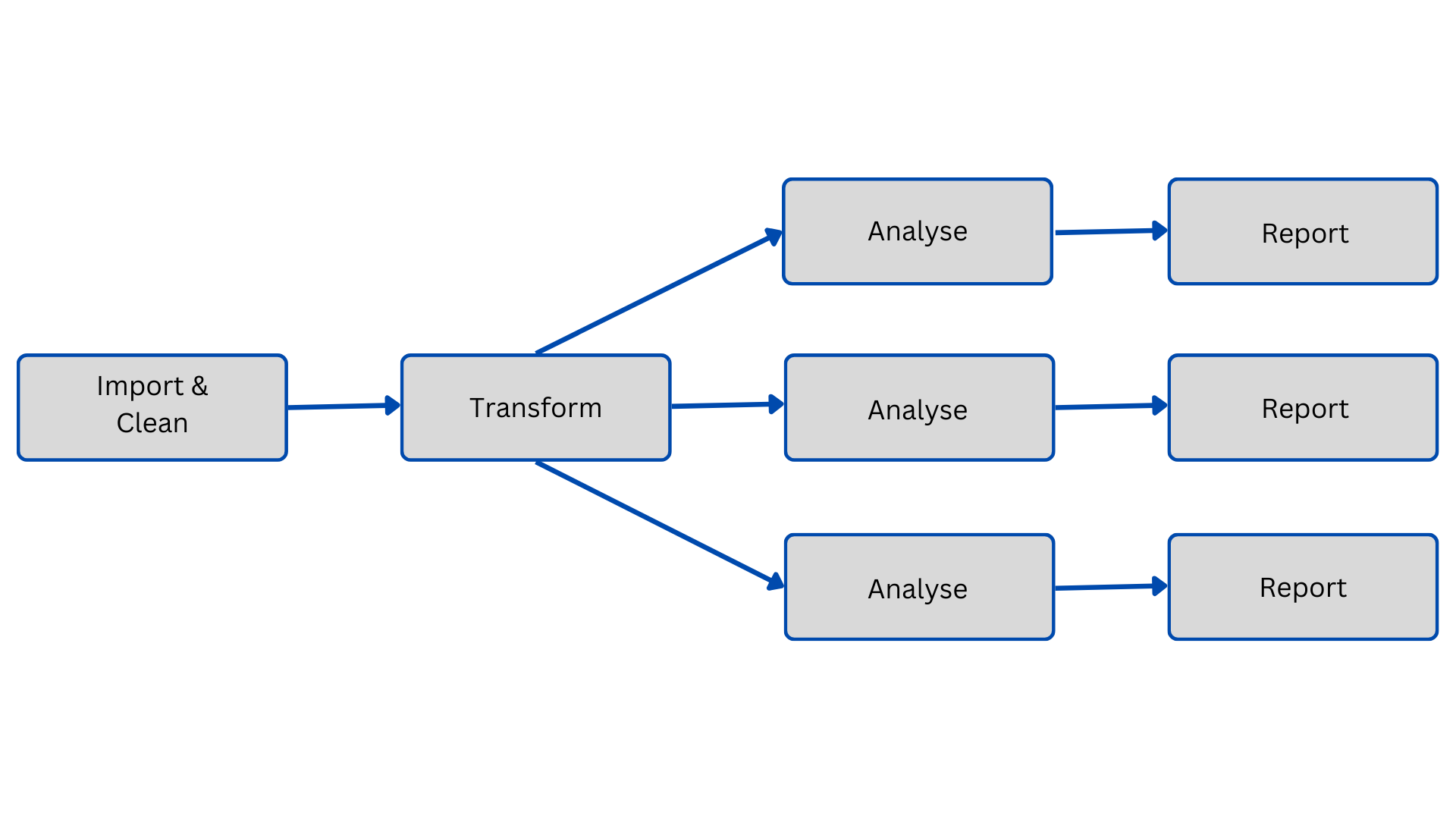
Data analytics process
For me each data analytics project is structured in a very similar way:
Note
The diagram above starts with importing data straight away but whenever you start working with data it is important to understand its source, the data collection methods and the exact question you want to answer.
Now let’s start with the first step of importing the data. There are several ways in which we can import data which we will discuss in this practical.
Installing and loading packages
To start, begin by installing and loading the necessary packages for this code. You can find some of the most commonly used packages here.
To install and load the necessary packages for this code, use the install.packages() and library() commands respectively.
The required package for this practical is:
- tidyverse: includes various packages commonly used in data analyses, such as ggplot2, tibble, readr, and more.
Tip
Packages only need to be installed once, but you will need to load them each time you start a new session.
Reading data
Once you have successfully installed and loaded all the necessary packages, you can begin reading your data.
To read your data, follow these steps:
Identify the type of data file(s) you are working with.
Determine the directory where the data files are stored.
Optionally, note the names of the files.
Reading one specific file
If we have one specific file we want to load we can do that with a very simple line of code. For a .csv file we will use the read_csv() function to load the data. If our file is an .xlsx file we will use the read.xlsx() function.
We are going to load the “CricketWomenODI.csv” file using read.csv and call it CricketDataDF. You can find the file on myplace but below we will use a direct link to a shared one drive document to load the data. In all your assignments we suggest you store your assignment data on your OneDrive and use the share link to load it into R.
Show the code
# Load data via shared link
CricketDataDF <- read_csv("https://strath-my.sharepoint.com/:x:/g/personal/xanne_janssen_strath_ac_uk/Easx37a9WdxNpcAFqkK5xSgBV3DD_kLYPNScjqPz145peg?download=1")
Reading multiple known files
If you have multiple files you need to load it may be easier to do this with one chunk of code. To load specific files from a folder, you first want to create a vector with the names of the files you want to load. In this practical, the files used are sourced from kaggle.com, data.world and statsbomb. You can find the data files here.
First we will create a vector which contains the four file names “WomensFootball.csv”, “FootballDataP1.csv”, “CricketWomenODI.csv”, “CricketWomenTest2.csv”.
Show the code
# Create a vector with the names of the CSV files
CSVFiles <- c("WomensFootball.csv", "FootballDataP1.csv", "CricketWomenODI.csv", "CricketWomenTest2.csv")

CSVFiles
[1] "WomensFootball.csv" "FootballDataP1.csv" "CricketWomenODI.csv"
[4] "CricketWomenTest2.csv"Next you need to specify the directory where they are located before loading them (make sure you have downloaded the files, stored them locally and then change the directory below to your own).
Show the code
# Set the directory where the CSV files are located
CSVDirectory <- "C:/Users/wkb14101/OneDrive - University of Strathclyde/MSc SDA/R Projects/B1701/data/Practicals 24_25"
Warning
R uses a forward slash (/) instead of back slash (\) when specifying directories.
To store multiple files conveniently, we can use a list(). This allows us to handle any number of CSV files effortlessly. Each data frame, representing a data file, is stored as an element within the list, and we can access them using the corresponding file names as keys. Using a list() helps maintain concise code by iterating common operations across all data frames in the list or accessing specific data frames using their respective file names.
Tip
If you want to know more about the list() function you can enter ?list() in your console.
Show the code
# Create an empty list which we will use to store the data frames
DataFrames <- list()
To efficiently read all the files specified in the CSVFiles variable, we can use a for() loop. Within the loop, we combine the directory with the file name using file.path(CSVDirectory, file) and check if the file exists using if (file.exists(FilePath)). If the file exists, we read the data using read.csv(FilePath) and store it in the DataFrames list using DataFrames[[file]] <- read.csv(FilePath). If the file is not found, a warning message is displayed. This approach allows us to handle multiple files and missing files effectively.
Show the code
# Read each CSV file and store the data frame in the list
for (file in CSVFiles) {
  FilePath <- file.path(CSVDirectory, file)
  if (file.exists(FilePath)) {
    DataFrames[[file]] <- read.csv(FilePath)
  } else {
    warning(paste("File", file, "not found. Skipping..."))
  }
}
Warning: File CricketWomenTest2.csv not found. Skipping...From the warning we can see that R did not find “CricketWomenTest2.csv” in our folder. On further inspection it appears we made a naming mistake and our file is called “CricketWomenTest.csv”. This shows how important it is to include warning messages, without this we may have not immediately realized the datafile had not been loaded.
Reading all .csv files in a folder
If we are not aware of all the file names or have a large number of files, we can choose to read in all .csv files within a specific folder. The initial step remains the same as mentioned above, where you identify the directory. However, when identifying the relevant files, we instruct R to create a list of all .csv files within the designated directory.
Tip
You may want to look into using list.files. If you need to know what input this function requires enter ?list.files in the console.
Show the answer
# Set the directory where the CSV files are located
CSVDirectory <- "C:/Users/wkb14101/OneDrive - University of Strathclyde/MSc SDA/R Projects/B1701/data/Practicals 24_25"

# Get the list of CSV files in the directory
CSVFiles <- list.files(CSVDirectory, pattern = ".csv",
                        full.names = FALSE)
We will still store our files in a list, thus creating an empty DataFrames list as before. However, you will notice that the last step in the code below is more concise compared to the previous approach. This is because the code retrieves all available files in the folder, eliminating the need for a warning message (if a file is not present in the folder, it will not appear in the CSVFiles list we just created).
Show the code
# Create an empty list to store the data frames
DataFrames <- list()

# Read each CSV file and store the data frame in the list
for (file in CSVFiles) {
  FilePath <- file.path(CSVDirectory, file)
  DataFrames[[file]] <- read.csv(FilePath)
}
Check all data in the list
To check which data frames have been read in, we can utilize the cat() function. The cat() function is specifically used to print out specified elements, using print() would result in printing all data frames at once.
The code provided below allows us to display the names of the elements in the list, along with the corresponding number of observations and variables for each element. Within this code, names(DataFrames) is used to retrieve the names of the elements stored in the list we just created. The cat() function is then used to print the names, with "\n" ensuring that each name is printed on a separate line. The for() loop is employed to iterate over each element (i.e. each file we have read in) within the list. For each element, the name, number of observations, and number of variables are printed.
Show the code
cat("Observations and Variables:\n")Observations and Variables:Show the code
for (i in seq_along(DataFrames)) {
  cat("\n")
  cat("Element:", names(DataFrames)[i], "\n")
  cat("Number of Observations:", nrow(DataFrames[[i]]), "\n")
  cat("Number of Variables:", ncol(DataFrames[[i]]), "\n")
}
Element: CricketData.csv
Number of Observations: 17998
Number of Variables: 15

Element: CricketWomenODI.csv
Number of Observations: 107988
Number of Variables: 15

Element: CyclingTI.csv
Number of Observations: 1000
Number of Variables: 17

Element: CyclingTI_predictive.csv
Number of Observations: 1000
Number of Variables: 17

Element: FootballDataP1.csv
Number of Observations: 18944
Number of Variables: 72

Element: FootballDataP2.csv
Number of Observations: 18944
Number of Variables: 72

Element: Men Test Player Innings Stats - 19th Century.csv
Number of Observations: 5170
Number of Variables: 28

Element: Men Test Player Innings Stats - 20th Century.csv
Number of Observations: 116160
Number of Variables: 28

Element: NBA21_22_pergame.csv
Number of Observations: 825
Number of Variables: 31

Element: Women Test Player Innings Stats - 20th Century.csv
Number of Observations: 8690
Number of Variables: 28

Element: Women Test Player Innings Stats - 21st Century.csv
Number of Observations: 6864
Number of Variables: 28

Element: WomensFootball.csv
Number of Observations: 105180
Number of Variables: 179
We have successfully read in 12 data files, known as the Elements. With these 12 data files imported, we have access to extensive datasets that can facilitate in-depth analysis and exploration of several sporting domains.
Using data stored in a list
As mentioned earlier, your data is stored in a list for convenience, particularly when dealing with large files. However, there might be instances when you need to assign specific data to its own data frame. In such cases, you can access the data from the DataFrames list.
To accomplish this, you can use the following steps:
Identify the desired data frame from the
DataFrameslist. For example, if you want to assign the data fromCricketWomenODI.csvto its own data frame, you can refer to it asDataFrames$CricketWomenODI.csvor alternatively[[2]]as it’s the second element in the list.Use the assignment operator (<-) to assign the selected data frame to a new variable.
By following these steps, you can extract specific data from the DataFrames list and assign it to separate data frames or tibbles for further analysis or manipulation in R.
Tip
See B1700 for a reminder on the use of data frames and tibbles.
Show the code
# Create a data frame for the football data
FootballDataDF <- as.tibble(DataFrames$FootballDataP1.csv)
FootballDataDF
# A tibble: 18,944 × 72
sofifa_id player_url short_name long_name age dob height_cm weight_kg
<int> <chr> <chr> <chr> <int> <chr> <int> <int>
1 158023 https://sofif… L. Messi Lionel A… 33 24/0… 170 72
2 20801 https://sofif… Cristiano… Cristian… 35 05/0… 187 83
3 200389 https://sofif… J. Oblak Jan Oblak 27 07/0… 188 87
4 188545 https://sofif… R. Lewand… Robert L… 31 21/0… 184 80
5 190871 https://sofif… Neymar Jr Neymar d… 28 05/0… 175 68
6 192985 https://sofif… K. De Bru… Kevin De… 29 28/0… 181 70
7 231747 https://sofif… K. Mbappé Kylian M… 21 20/1… 178 73
8 192448 https://sofif… M. ter St… Marc-And… 28 30/0… 187 85
9 203376 https://sofif… V. van Di… Virgil v… 28 08/0… 193 92
10 212831 https://sofif… Alisson Alisson … 27 02/1… 191 91
# ℹ 18,934 more rows
# ℹ 64 more variables: nationality <chr>, club_name <chr>, league_name <chr>,
# league_rank <int>, overall <int>, potential <int>, value_eur <int>,
# wage_eur <int>, player_positions <chr>, preferred_foot <chr>,
# international_reputation <int>, weak_foot <int>, skill_moves <int>,
# work_rate <chr>, team_position <chr>, team_jersey_number <int>,
# nation_position <chr>, nation_jersey_number <int>, pace <int>, …We can now see that FootballDataDF is listed as it’s own data frame including 18944 observations and 72 variables.
Exercises
Exercise 1: Load the “Men Test Player Innings Stats - 19th Century.csv” file using read_csv and call it Mens19DF You can access the file using the following link or on myplace:
Show the answer
# Set the directory where the CSV files are located
Mens19DF <- read.csv("https://strath-my.sharepoint.com/:x:/g/personal/xanne_janssen_strath_ac_uk/EZ7nAnL64ZpFjEZEV1oBiYEBfFPFvtZwTmXMh7zxzNwHJQ?download=1")
Exercise 2: If you haven’t already done so download all the other files in the Practical 1 folder from myplace. Assign the directory where you have stored your files to CSVDirectory.
Show the answer
#Set the directory where the CSV files are located
CSVDirectory <- "C:/Users/wkb14101/OneDrive - University of Strathclyde/MSc SDA/R Projects/B1701/data/Practicals 24_25"
Exercise 3: Create a vector which contains the following file names: Men Test Player Innings Stats - 19th Century.csv, Men Test Player Innings Stats - 20th Century.csv, Women Test Player Innings Stats - 20th Century.csv, Women Test Player Innings Stats - 21st Century1.csv
Show the answer
# Create a vector with the names of the CSV files
CSVFiles <- c("Men Test Player Innings Stats - 19th Century.csv", "Men Test Player Innings Stats - 20th Century.csv", "Women Test Player Innings Stats - 20th Century.csv", "Women Test Player Innings Stats - 21st Century1.csv")

CSVFiles
Exercise 4: Create the code to read in multiple files listed within the CSVFiles vector.
Show the answer
# Create an empty list which we will use to store the data frames
DataFrames <- list()

# Read each CSV file and store the data frame in the list
for (file in CSVFiles) {
  FilePath <- file.path(CSVDirectory, file)
  if (file.exists(FilePath)) {
    DataFrames[[file]] <- read.csv(FilePath)
  } else {
    warning(paste("File", file, "not found. Skipping..."))
  }
}
Exercise 5: Create code to read all csv files in your CSVDirectory
Show the answer
# Get the list of CSV files in the directory
CSVFiles <- list.files(CSVDirectory, pattern = ".csv",
                        full.names = FALSE)

# Create an empty list to store the data frames
DataFrames <- list()

# Read each CSV file and store the data frame in the list
for (file in CSVFiles) {
  FilePath <- file.path(CSVDirectory, file)
  DataFrames[[file]] <- read.csv(FilePath)
}

# Check data loaded
for (i in seq_along(DataFrames)) {
  cat("\n")
  cat("Element:", names(DataFrames)[i], "\n")
  cat("Number of Observations:", nrow(DataFrames[[i]]), "\n")
  cat("Number of Variables:", ncol(DataFrames[[i]]), "\n")
}
Exercise 6: Assign WomensFootball.csv within DataFrames to a new tibble called WomensFootballDF and print WomensFootballDF
Show the answer
# Create a data frame for the cricket one day international data
WomensFootballDF <- as_tibble(DataFrames$WomensFootball.csv)
WomensFootballDF